GIMP 2.8: understanding UI changes
There’s quite a lot to tell about GIMP 2.8: better interface, new features, improved tools and so on. Would you like to use it to its full potential?
Instead of working on a full review of GIMP 2.8 forever, how about explaining essential changes in digestible chunks? Let’s start with changes in user interface.
Saving and exporting
You’d probably expect the review of UI changes to start with the single-window mode, but let’s break the pattern for once and start with the most controversial change.
Since v2.8 the application exposes the internal difference between saving and exporting and doesn’t let you just Ctrl+S your JPEG or PNG file anymore. Why, oh why did the team do it, one might ask…
What the old behavior was
First of all, GIMP doesn’t really have any special modes for different file types. Internally it only deals with capabilities of its own project file format, XCF. When it opens a file that isn’t in the native file format, such as JPEG or PNG, it actually creates a new project and imports this file to it.
It might even preprocess the imported data, in case of e.g. FITS. But once it’s imported, GIMP handles non-native data as its own, allowing you to add more layers and group them, draw Bezier curves etc.
Still with me?
Now, this is important: many of those original file formats cannot store all the extra data that you created. So when you tried to save it back with v2.6, here is what actually used to happen:
- You tell GIMP what destination file format you need.
- GIMP activates the required plug-in for storing data in that file format.
- The plug-in tells GIMP which information can be stored, which can’t and which needs processing (e.g. rolling multiple layers into one) before it can be stored.
- GIMP might ask you to specify details relevant to the file format you chose.
- Then it saves data.
Sounds boring, eh? Well, the user-visible effect was that every time you saved to a non-XCF file, you had to confirm that you really did mean to lose all the extra data, thank you very much.
In other words, GIMP used to assume that you don’t mind accidental loss of unrecoverable project data and bothered you with confirmation dialogs. It was a convoluted logic, but people got used to it.
What the team did
In 2006 the team sat down with Peter Sikking of man + machine interface works and came up with a project vision (previously lacking) that basically says:
- We want GIMP to be a tool used by professionals who work on complex projects.
- This is our target audience, and it has certain workflows.
- We want to change GIMP to honor those workflows.
The separation between saving and exporting is the direct result of that decision. In a nutshell, the new logic is:
- GIMP is targeted at hi-end use and work with multiple layers, extra channels etc.
- Only GIMP’s own file format can store all of that reliably (PSD is alien).
- Therefore GIMP can only open and save its own files without losing anything essential.
- Hence everything else is imported and exported.
The major benefit of this change is that it fully supports the primary use case when you work on a complex multi-layered project and save a flattened representation for sharing and/or review. The additional benefit is that GIMP won’t bother you with confirmations for flattening layers while exporting to JPEG or PNG.
Let’s observe how it actually works.
The new primary workflow
For example, you can work on complex images stored in a private Dropbox folder as XCF and then export to PNG to a public folder a client can read and periodically overwrite the file with just a shortcut and no annoying dialogs.
Here is what it looks like. You created an arbitrary multilayer image, saved as XCF, but haven’t exported yet:
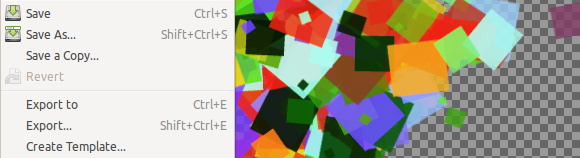
When you export for the first time, GIMP asks you for settings just once and never again.
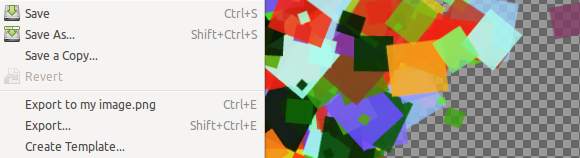
Now that you exported, all subsequent exports will be available via Ctrl+E by default in an non-interruptable manner, and the filename will be appended to the menu command.
You can keep pressing Ctrl+S to save the project file and Ctrl+E whenever you need to export.
The new secondary workflow
What about a different workflow, when you open a single-layered file such as JPEG or PNG, quickly edit it and want to just resave it to the original file?
GIMP 2.8 supports this workflow too. While it still imports rather than opens non-project files, it understands the kind of image you opened, so instead of “Export to %filename%” you get “Overwrite %filename%", without a shortcut:
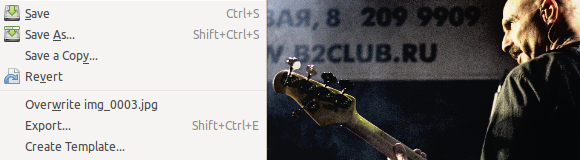
Choosing that command will save your changes back to the original file, and, once again, it will not warn you about multiple layers, if any are present.
If you choose to save to XCF, GIMP will understand that as saving the state of the image to a new project file and will stop caring about that source image you “imported”. The connection to the original file will be gone:
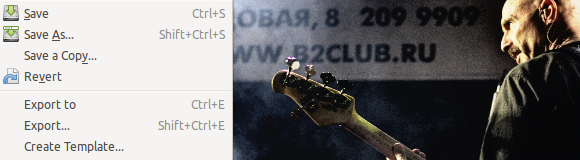
And if you export to e.g. TIFF, it will be “Export to %filename%” again.
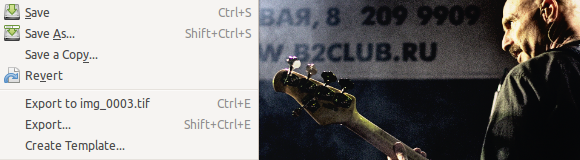
Hate the change? Here’s the solution
What if you absolutely hate this new behavior and will never or rarely need saving XCF? You can configure GIMP to do that.
Use Edit / Keyboard Shortcuts menu command to open the shortcuts configuration dialog, then type in “over" in the search filter:
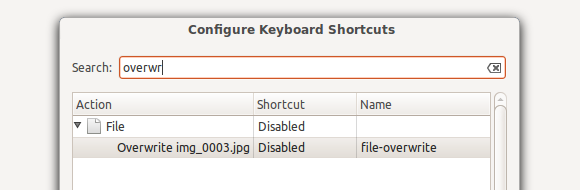
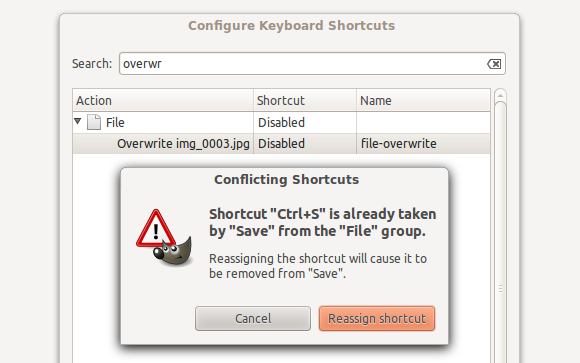
Click on the cell that says “Disabled" for overwriting. You will be asked to confirm that you want to remove Ctrl+S shortcut mapping from the Save command.
The new assignment will be remembered:
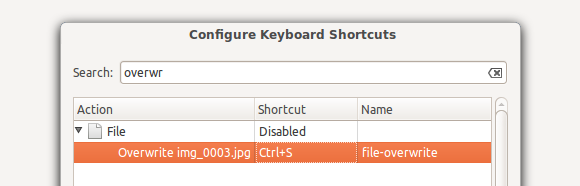
Now you can try opening an image file:
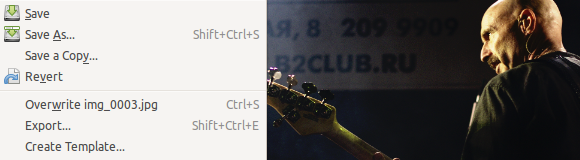
Just as you’ve grown to do, if you don’t mind the menu item to be called differently. There will be just two behavior changes to get used to.
First of all, when you close that image, you will be warned that you didn’t save the whole state (you imported that image, remember?)
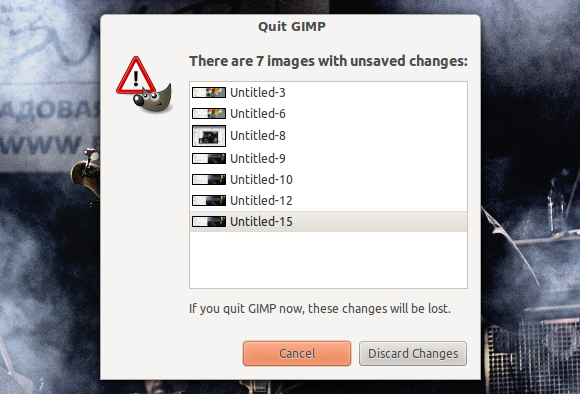
But if your images are small (e.g. screenshots), you don’t have to bother closing them all the time: the new single window mode is a major relief when you have many windows open. You can just close all at once periodically.
(Personally, I rarely quit GIMP and often find myself closing images I edited a week or two ago. I only ever quit it to rebuild a new revision and test something, and I only have 2GB of RAM while running GNOME 3.)
Finally, when you create a new image from scratch and just want to save to JPEG or PNG, you will still have to export (Ctrl+E) first.
Why couldn’t they uust add a checkbox?
Isn’t it possible to just add a checkbox in the configuration dialog somewhere? It is.
Would it be a good idea? No, it would be horrible. Let’s have some reasoning again.
- In general, options complicate code and make it less manageable. Every option virtually increases amount of cases where application can fail. A snowball can soon become an avalanche.
- Certain planned changes such as better native CMYK support presume that color separation is done a special mode for exporting. Maintaining a related behavior switch, when you have such a feature, would be hell.
- Behavior options make documentation convoluted and lacking consistence.
It’s quite possible that none of that bothers you as a user. It’s a developer’s issue, no? Well, consider this: after you’ve read the product vision, do you feel like you are part of it, or maybe you only used GIMP, because something like Pinta wasn’t around?
It’s one hell of a question. People still take offence at this change, and there is probably no cure for that other than repeating again and again: the team doesn’t hate you, they just refocused on a group of users for whom this makes a lot of sense.
Single-window mode
There isn’t really much to say about it:
- The toggle is here: Windows / Single-Window Mode.
- The forced combined elements are image windows and the toolbox. You can still float dockable dialogs and move them to a second display.
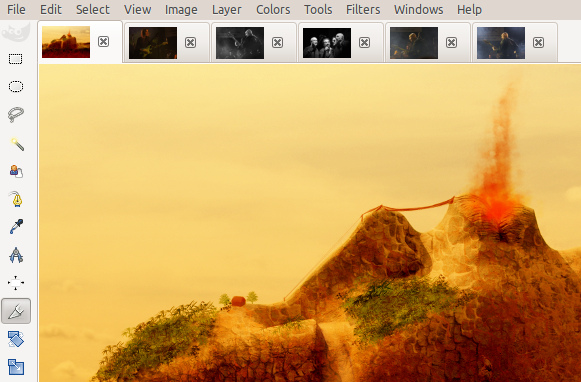
- Image windows are grouped in tabs which have thumbnails instead of file names (sadly, not configurable).
- You can pick a layer in one image, drag it and drop onto a thumbnail of another image’s window to append that layer.
Here is a dirty trick you probably would never figure other than accidentally. GIMP merges docks to the single-window mode based on their position in relation to the main window. So if you want the toolbar to the right, do the castling (as in chess):
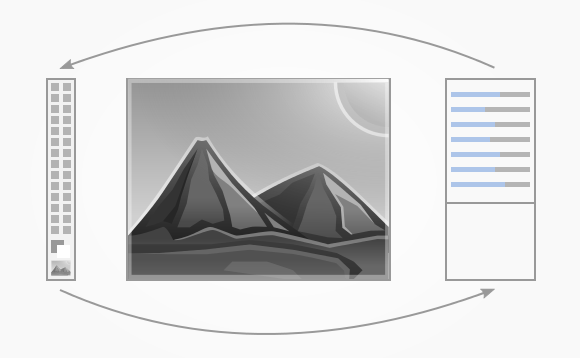
Re-enabling the single-window mode dock the toolbar to the right:
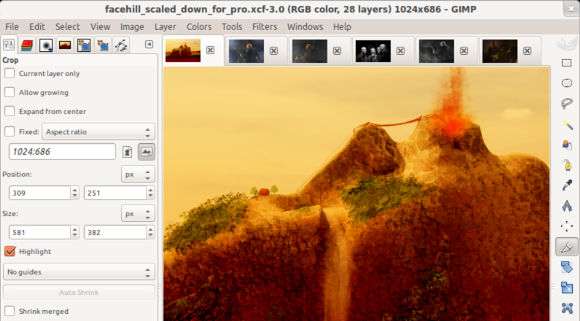
If you want to temporarily hide all dockable dialogs in the toolbox, the Tab shortcut is still available
The much anticipated optional single-window mode is actually side A of the whole LP. The B side hasn’t yet been delivered in a form of a specification, and the dedicated developer is mostly absent these days anyway.
So things like being able to view multiple images at once in the single-window mode or even sync navigation in them will hopefully happen later. Even so, the change was greeted with mostly cheers and few muted boos.
Multi-column dock windows
Since v2.8 you can join dockable dialogs horizontally. You can probably think of many uses, but the one I have in mind is when you have a really complex project with tons of layers, and you need to see many of them at once.
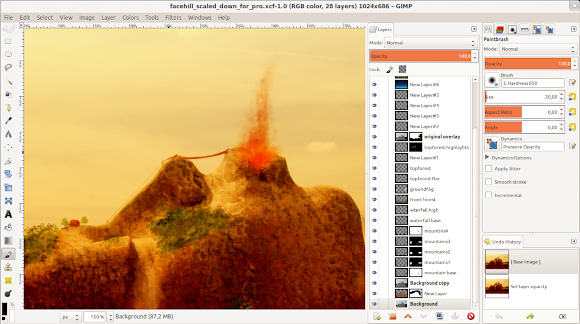
(Image courtesy by Alexia Death)
All you need to do is just pick a dockable dialog and drag it to another dockable dialog till you see a highlighted vertical line that marks the connection.
The new slider widget
In the past GIMP abused a combination of a label and a slider, and sometimes even a spinbox widget. And since no label was equal to another in the tools’ options dialog, widgets were misaligned. What’s even worse, that bloated min width of the dialog. As if it wasn’t bad enough, the default slider widget wasn’t easy to use with a Wacom stylus.
So Michael Natterer implemented a new experimental widget based on a brainstorming idea by Peter Sikking. The new widget that combines all those three widgets. The label was placed inside the slider area, and the slider area was made more prominent.
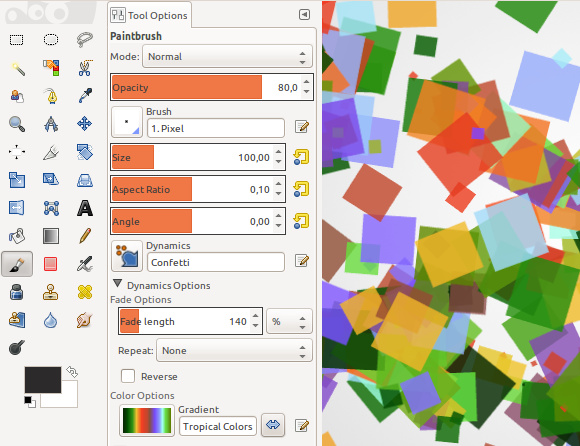
The size of a change step depends on the position of the mouse / stylus pointer:
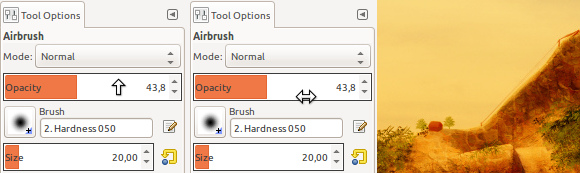
The widget has several deficiencies such as lack of a logarithmic scale. The team is in agreement that the tools’ options have to be redone to become more compact anyway, so the next 10 weeks an intern will be working with Peter Sikking on a concept of a new widget set.
Simple math expressions in size entries
Sometimes you need to adjust an image just a little bit to make it fit an area. Or you know you need to resize it to a certain percentage of the original size. Whatever the reason, you are lazy to calculate the resulted image size and you’d rather have GIMP work it out for you.
The new version of GIMP allows you using arbitrary units is size entry boxes. Let’s say you are working in pixels and you need to reduce the width by 20%. Easy! Just type this in. Pressing Enter or Tab will complete the computation:

You can mix any units listed in the Edit / Units dialog: pixels, inches, percents. GIMP will take care of conversions for you.
This is probably the only UI change that nobody really hates.
Interestingly enough, the size entry widget was rewritten during Google Summer Of Code 2011 and is likely to become part of v2.10. On a user-visible level (and that’s not all there is to it) the widget has unit selection inside the entry field.
Patreon subscribers get early access to my posts. If you are feeling generous, you can also make a one-time donation on BuyMeACoffee.